
Drowning in tabs? Park them.
The tabs close. The groups stay.
- Free
- No account
- For Chrome and Microsoft Edge 116 or later
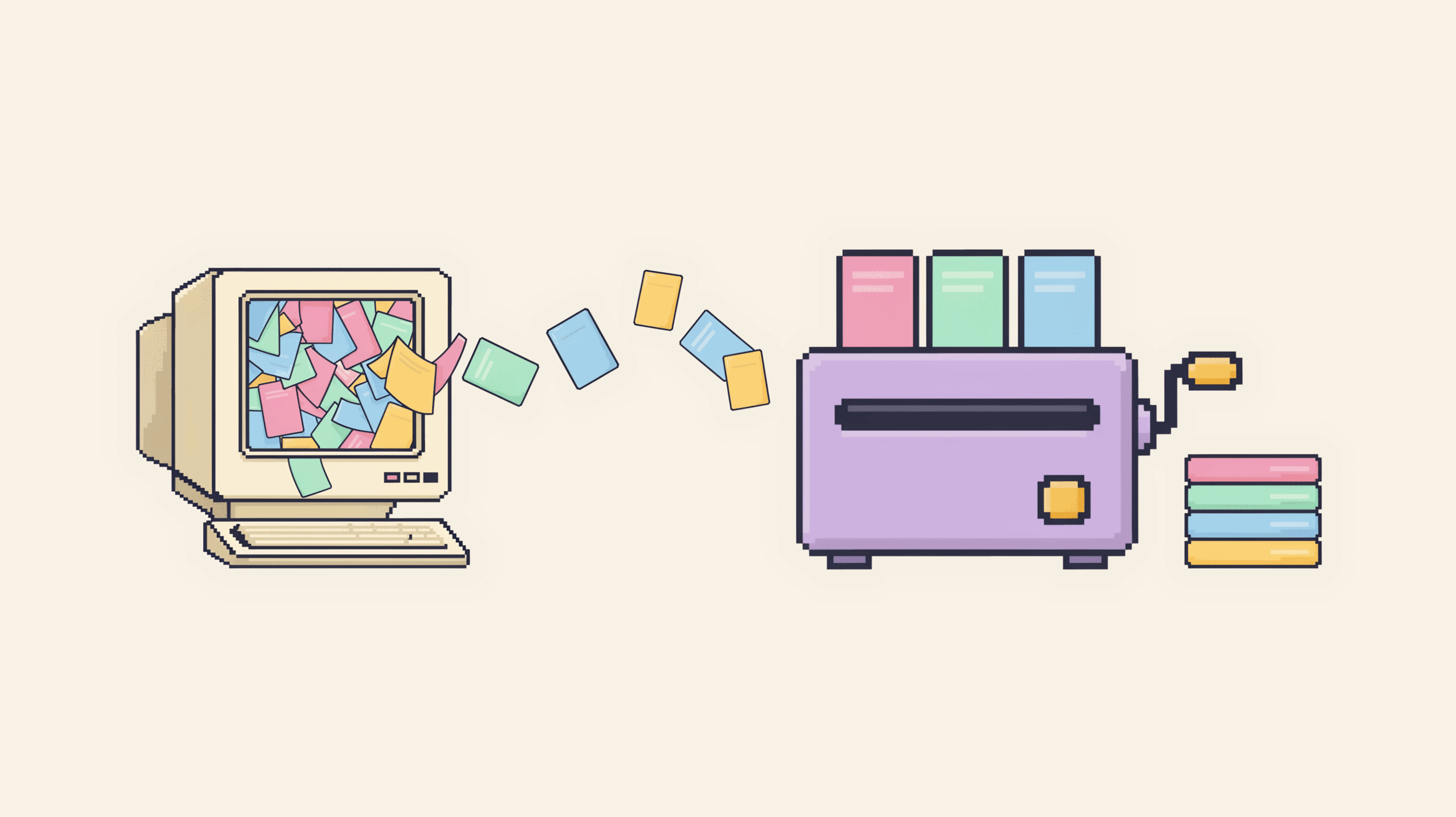
Tabs pile up
- Fifty tabs open. Just in case.
- The fan roars. Every click waits.
- Close one? You'll need it tomorrow.
- Park a group. Its tabs close.
- The browser frees their memory.
- Open it again later, tabs in order.
See it in 75 seconds
A silent tour with captions: the first start, the manager, Organise, Park, a backup file and the lock.
What it does
-
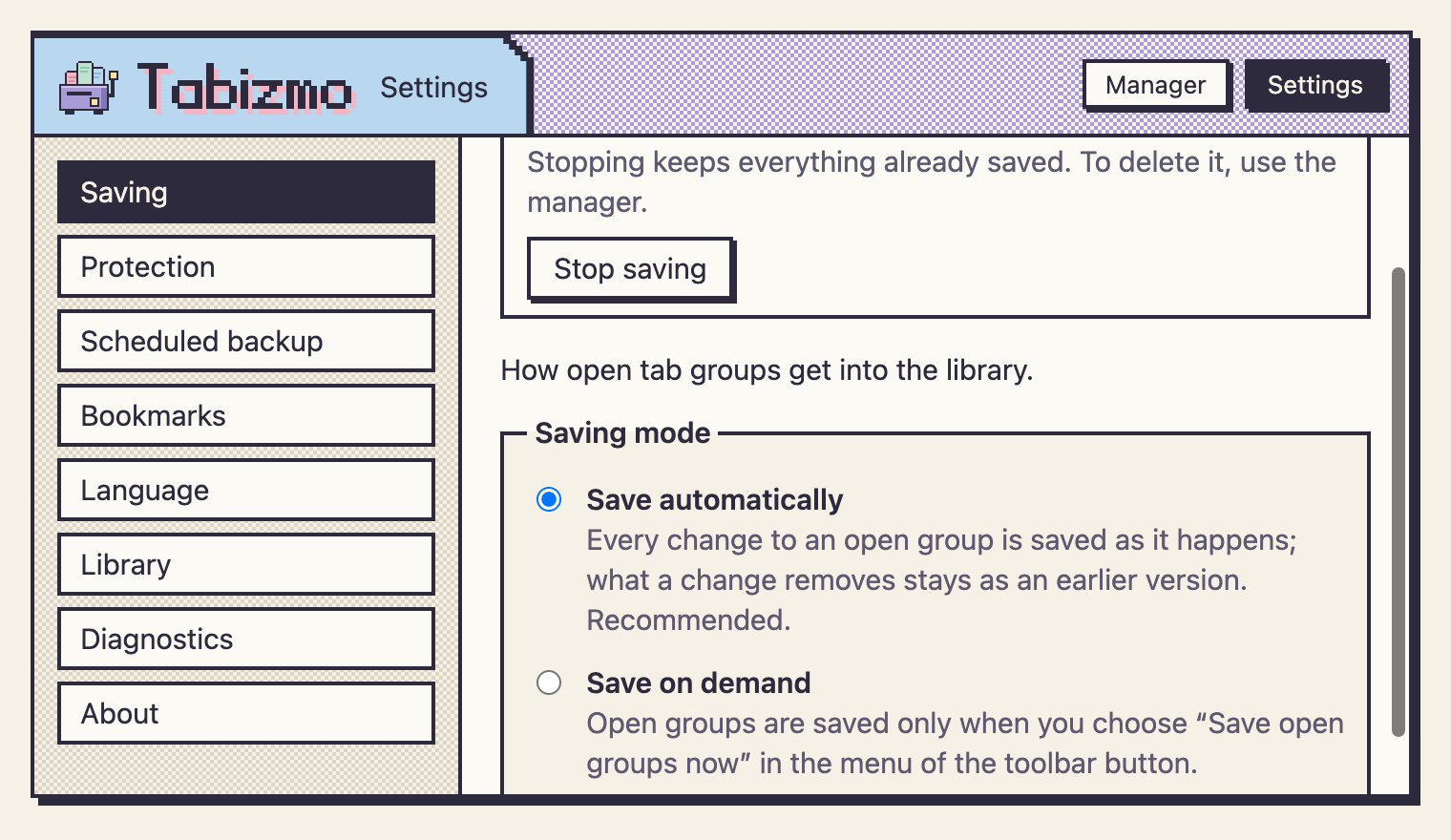
Saves your groups as you work
Each open tab group, with its name, colour and tabs in order, is saved in a library on your computer as it changes. If you prefer, switch to Save on demand: groups are then saved only when you ask. Closing a group in the browser never deletes it from the library.
-
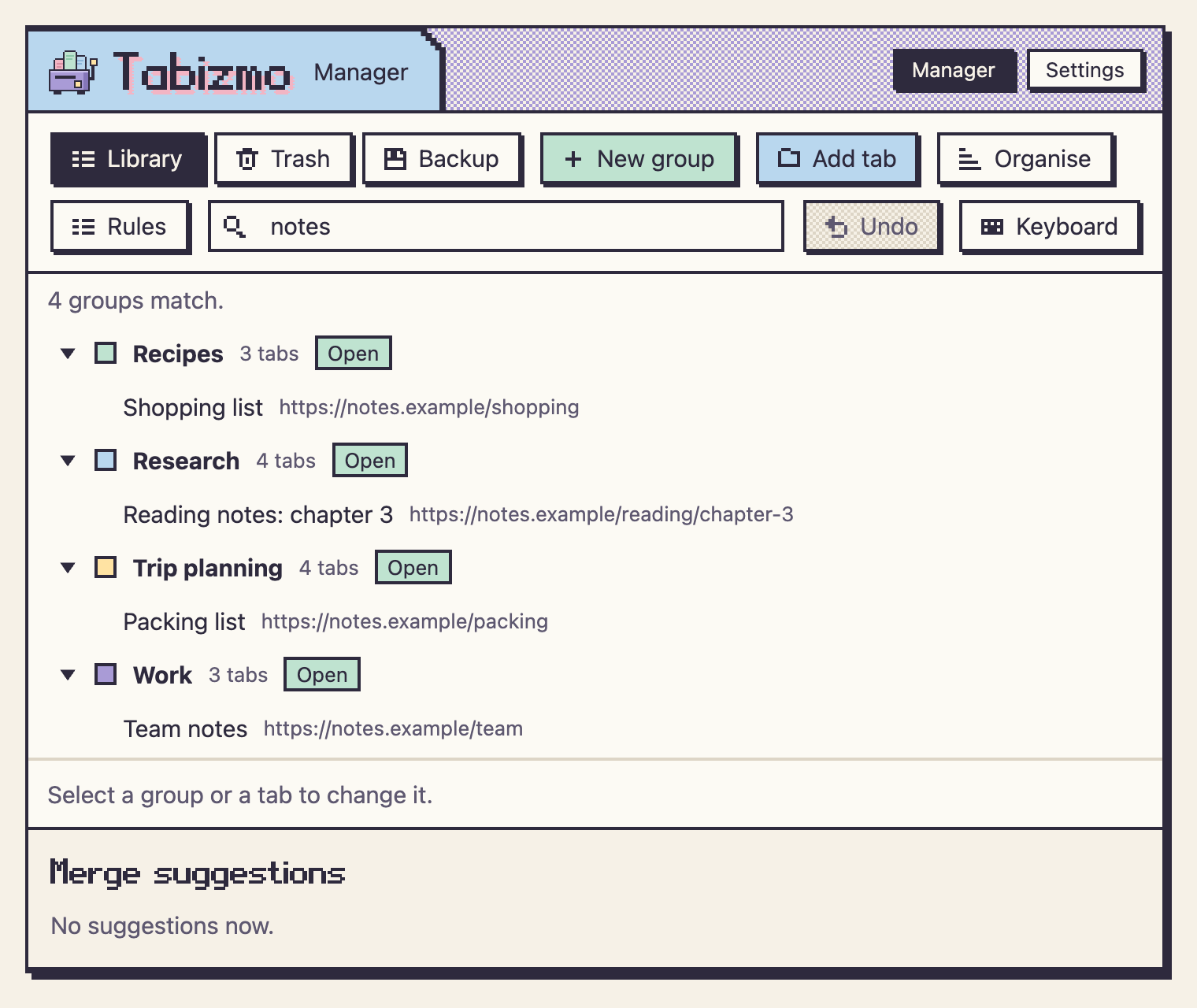
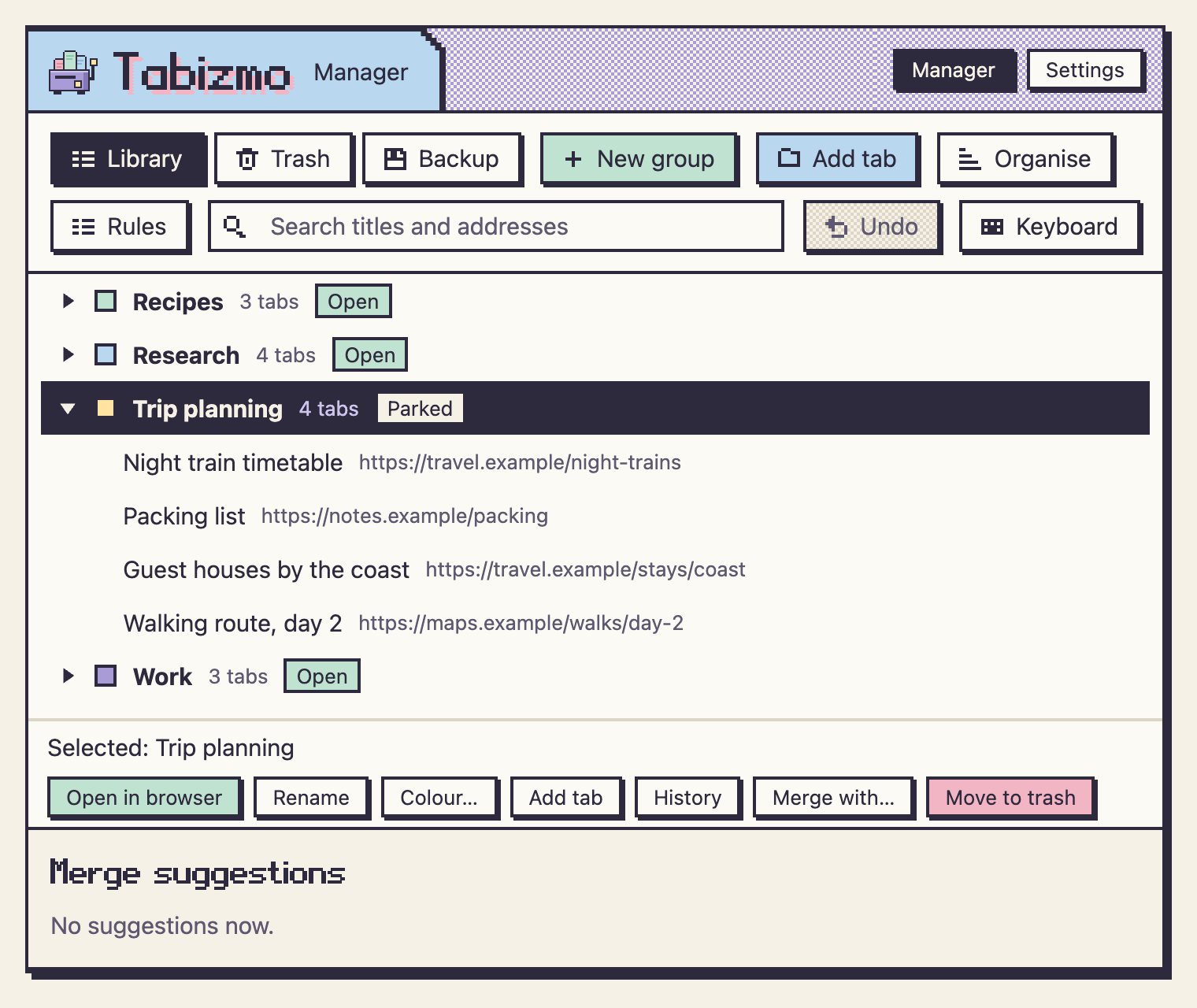
One manager for every group
Every group, open or parked, in one tree. Rename and recolour groups, move tabs with the mouse or the keyboard, search titles and addresses, undo a change. When a change removes tabs from a group, the previous version is kept; deleted groups wait in the trash for 30 days.
-
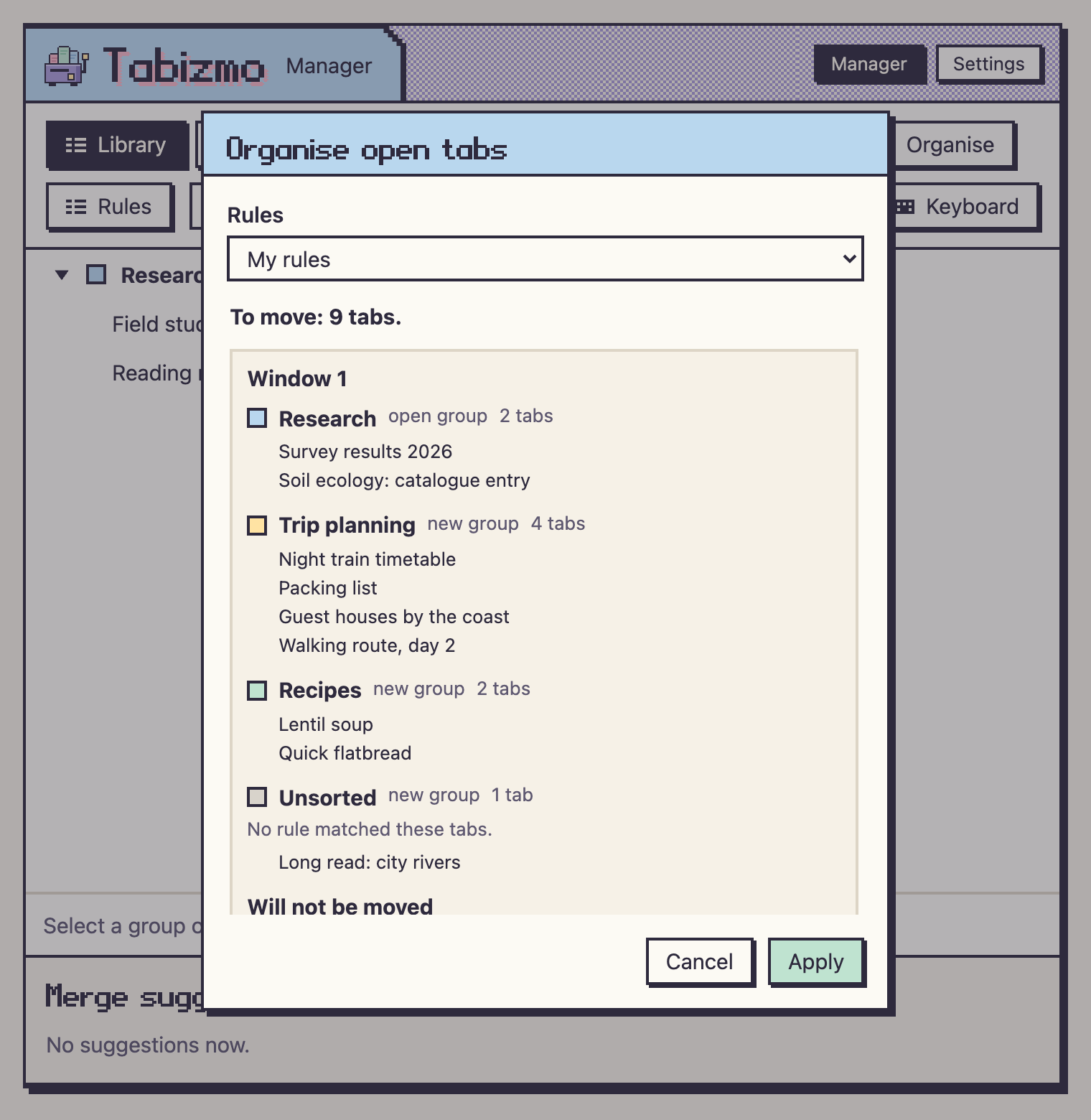
Organise by rules
Rules by site, by text in the address or by text in the title put your open tabs into named groups. You see the plan before anything moves, and Undo puts every tab back. Tabs that no rule matches wait in Unsorted.
-
Park and restore
Park closes a group's tabs once its current state is confirmed in the library; if that cannot be confirmed, nothing is closed. Restore opens it again as a tab group, with its tabs in their order.
-
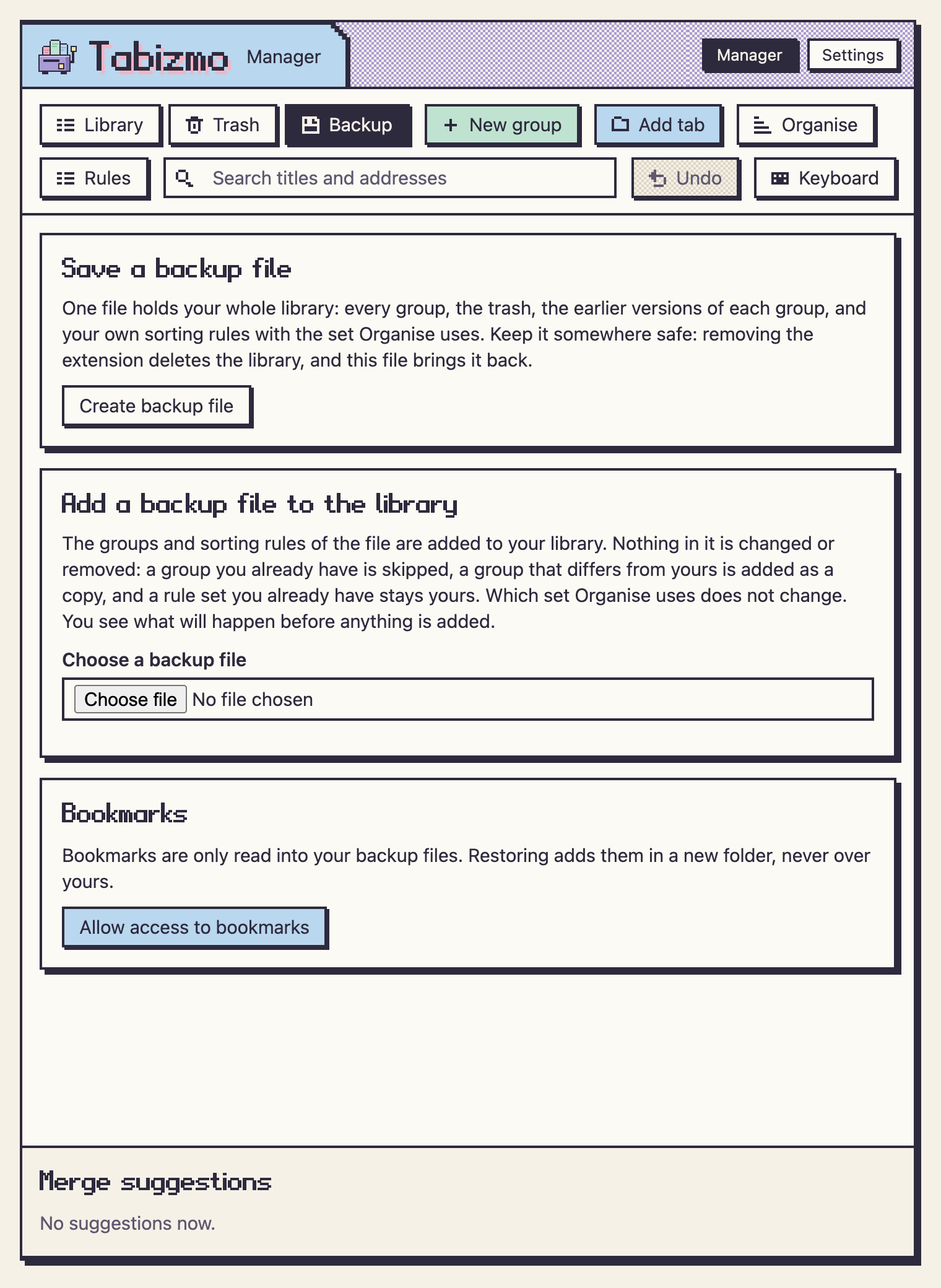
Backup files you keep
One file holds all your saved groups, their history and the trash, and your own rule sets with the one Organise uses. Save it wherever you like and import it on this computer or another: an import first shows what it will add, and changes nothing you have. With your permission, the backup files you save also hold your bookmarks, and you can save them as a standard HTML bookmark file. Scheduled backup files leave the bookmarks out.
-
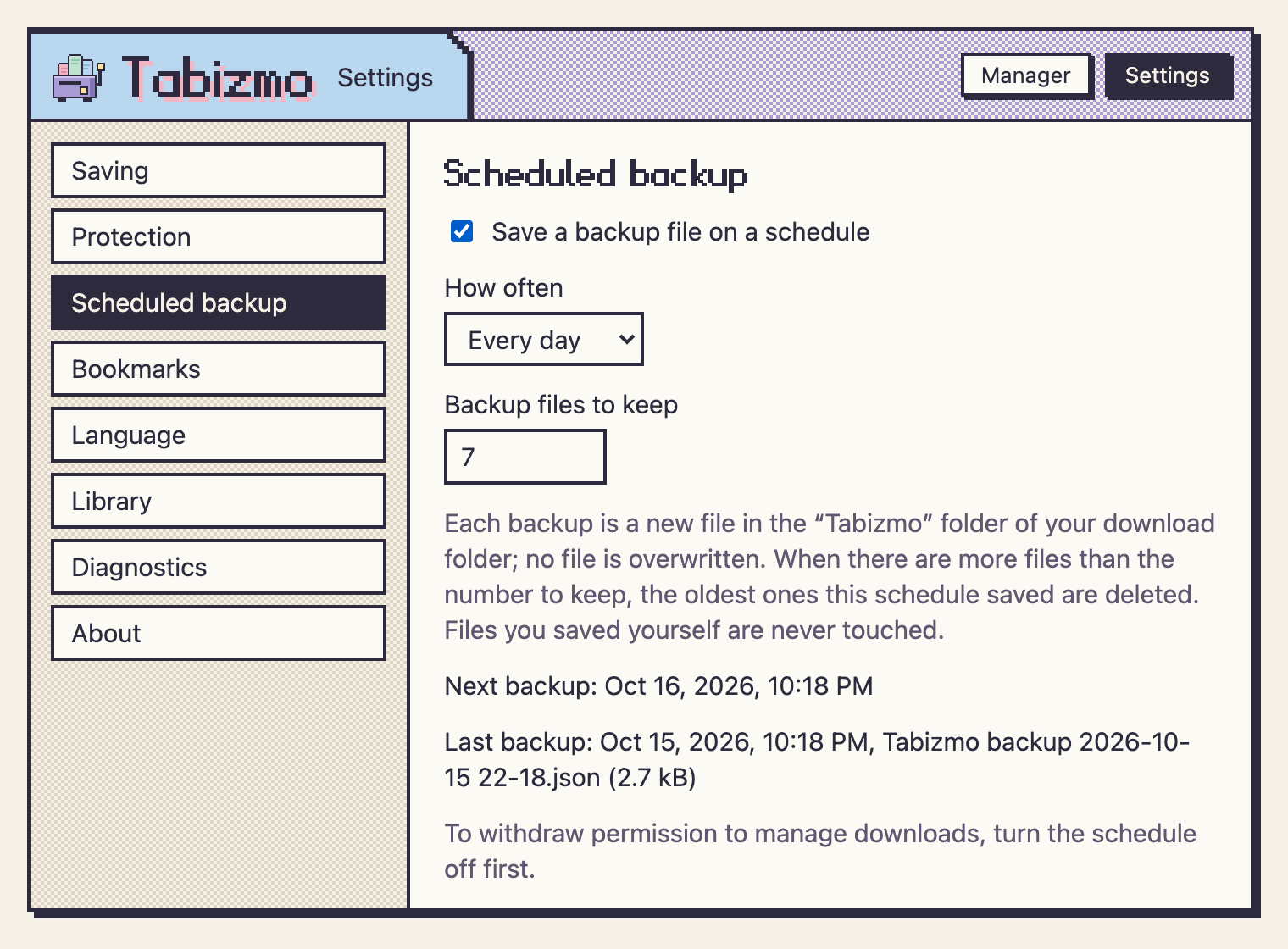
Scheduled backup
If you switch it on: a new file every day or every week in a folder of your downloads. It keeps the number of recent files you choose and deletes only older ones it saved itself. A backup counts as done only when the browser reports the file complete.
-
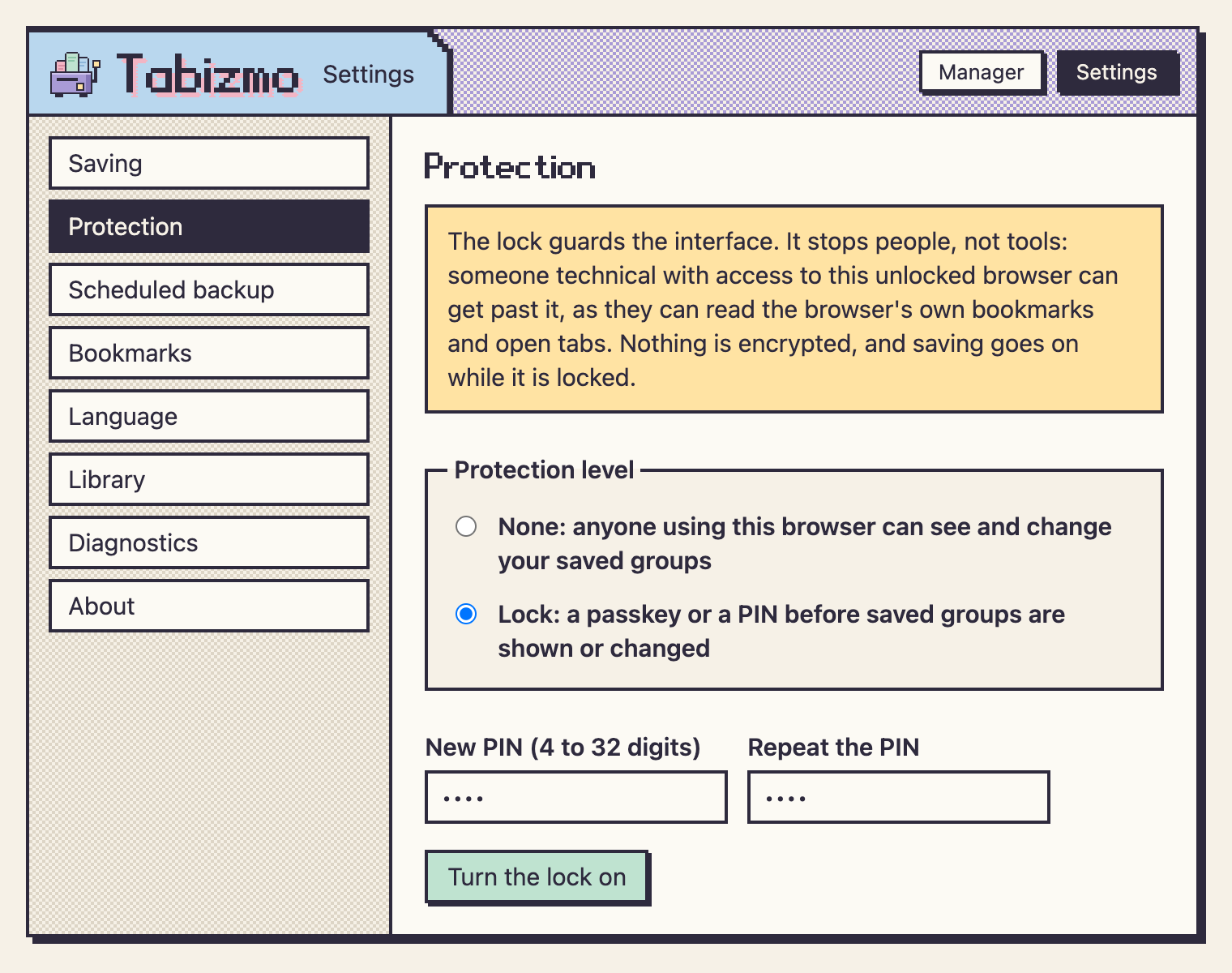
Optional lock
Put a passkey or a PIN in front of your saved groups. Saving goes on while it is locked. The lock stops people at your computer, not tools: it encrypts nothing, and the extension says so.
-
Everything stays on your computer
Your groups, their history, your rules and your settings live in your browser's own storage, on your computer. No account, no server, no analytics, no telemetry. The extension makes no network requests, and we never receive your tabs, bookmarks or settings.
How it works
-
1. Add it to your browser
Chrome or Microsoft Edge, version 116 or later. Right after installation, a short guide takes you to your first backup file.
-
2. Work as you always do
Your open groups are saved as they change. When tabs pile up, Organise sorts them into groups by your rules.
-
3. Bring any group back
In the manager, restore a parked or closed group, or an earlier version of it, with one button.
Questions
Will it make my computer faster?
It does not speed up your computer by itself. Closing tabs lets the browser free the memory they were using; how much that helps depends on your computer and the pages you had open. We publish no figure we have not measured.
Where is my data?
On your computer, in your browser's own storage: your groups, their history, your rules and your settings. The extension makes no network requests, and we never receive your tabs, bookmarks or settings. Backup files go only where you save them.
What happens if I remove the extension?
Removing the extension deletes its library, so keep a backup file. Importing that file brings your groups back, with their history and trash, and your own rule sets, on this computer or another.
What does the lock protect, and what not?
While the lock is on, seeing, changing, restoring, exporting or importing your saved groups asks for your passkey or PIN, and saving goes on. It stops people at your computer, not tools: it encrypts nothing, so someone technical with access to the unlocked browser can get past it. Backup files are not encrypted either; keep them where you keep other private files.
Which browsers does it work in?
Chrome and Microsoft Edge, version 116 or later, on the desktop. The interface is in English, Polish, German, Spanish and French: it follows your browser's language, or the one you choose in the settings.
Is it free?
Yes. Tabizmo is free and needs no account.
Can it save groups that are closed already?
The browser shows extensions only the groups that are open. A saved group that is closed gets into the library once you open it.
Close the tabs. Keep the groups.
Free. No account. Nothing leaves your computer.